SPEAK ON!
Voice-to-Chat for Zwift
Speak your language and chat with other riders — in English or several languages at once. Press a button on a Bluetooth remote on your handlebars (or any key on your keyboard), say what you want, and your translated message appears in Zwift's chat. There's even a built-in radio that ducks the music while you talk.
Ready to Ride
SPEAK ON! started as a personal prototype called Zwift Buddy, built for my own use during indoor rides. It worked well enough that I decided to turn it into a proper tool for the whole Zwift community.
It's free to use. If you try it, your feedback is very welcome — just drop me a line at luca@lucadegre.it.
What's new in v2.2.47: after a long session the
voice keys could stop working: the key played the “busy”
sound but the mic never opened, until you restarted SpeakOn. The
cause was a connection that stalled without ever answering, leaving
SpeakOn waiting forever. Now every online step has a time limit (then
the next translator takes over), and if a phrase ever gets stuck the
next key press clears it. SpeakOn also keeps a small step-by-step
log of each phrase, so if something still goes wrong you can send it
to me. From v2.2.46: the login window says where
your Zwift password goes (only to Zwift, never to SpeakOn's servers).
From v2.2.45: we measured Zwift's chat line for real and it
takes 139 characters, not the 200 we had assumed,
so messages between 140 and 200 were being cut by the game without
anyone noticing. The AI now condenses to 139, and without AI the
message is trimmed at a whole word with a note in the log. The
“wait for silence” mode records up to 30 seconds (was
15, which ate the end of long sentences) and warns you if you hit
the cap. And a COPY button on the log puts the whole
log on your clipboard, so if something goes wrong you can paste it
to me instead of photographing the screen.
From v2.2.43: no more waiting mid-ride.
Translation now runs as a chain: the AI (if you enabled it, with a
hard 3-second budget) → Google Translate → a backup
translator. The first one that answers wins, and any engine that
fails is remembered and skipped for a few minutes, so a slow
round trip happens once, not on every message. When Google's
free AI model is overloaded, SpeakOn tries the next model of the
family. The log tells you in one line what happened
(“AI paused 2 min”, “Google Translate blocked
this connection”, “AI back online”) and shows
how long the AI took next to each translated line.
From v2.2.42: your saved Gemini key and Zwift login
no longer vanish after a network change (after updating you may
have to enter them one last time). From v2.2.40:
Google Translate's free service sometimes blocks a connection for
hours (“too many requests”, often not your fault on
mobile and shared connections): a backup translator keeps your
messages going out, and errors are one clear line instead of a
wall of text.
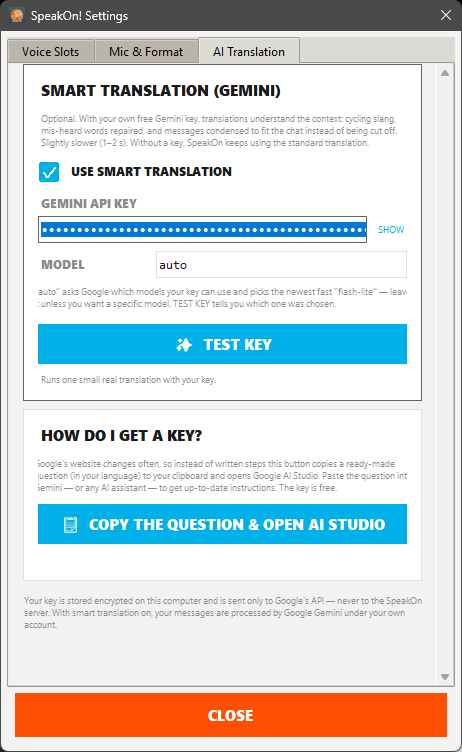
From v2.2.38: smarter translation, if you want it. Paste your own
free Google Gemini API key in Settings → AI Translation and your
messages are translated by an AI that knows it's writing for
Zwift chat: it fixes what speech recognition got wrong, keeps
cycling slang, and squeezes the text into the chat's character
limit. Not sure how to get a key? One button copies a short
question in your language and opens Google AI Studio —
paste it into Gemini and follow the steps. No key? Nothing
changes: the standard translation keeps working as before.
Also new: honest sounds — every cue plays at the
moment it means something (mic open, “got it”, sent,
or a clear “nothing went out”), so you always know
SpeakOn is still working and never press the key twice. Plus the
“press to start, press again to send” recording mode
for noisy trainers, with a short countdown before it times out.
If anything misbehaves, tell me at
luca@lucadegre.it.
First-time setup on Mac (permissions)
- Unzip, then right-click SpeakOn → Open (first time only — the app isn't signed by Apple).
- Grant Input Monitoring and Accessibility: SpeakOn shows a guided screen with one-click buttons — open the panel, click “+”, choose SpeakOn, turn it ON.
- Microphone: just click Allow on the pop-up.
- Use the in-app “Restart SpeakOn” button so the permissions take effect.
Note: after a future update you may need to re-add those two permissions once — a limitation of free, unsigned apps.
What it does
Voice Chat with Auto-Translation
Speak into your microphone in your language and SPEAK ON! converts your speech to text, translates it, then types and sends the message straight into Zwift's in-game chat. Distinct sounds tell you what's happening without looking at the screen: a tick when the mic opens, a “got it” pop when it closes, a bright chime when your text is in chat, a low thud if nothing went out.
Smart Translation (optional)
Out of the box SPEAK ON! uses standard Google translation. If you paste your own free Google Gemini API key, an AI takes over: it knows it's writing for Zwift chat, repairs what speech recognition misheard, keeps cycling words and condenses long sentences into Zwift's 139-character chat line instead of letting them get cut. A one-click helper copies a question in your language and opens Google AI Studio so you can get the key without being a developer. The key stays encrypted on your computer.
Multiple Voice Slots
Set up to three independent slots, each with its own hotkey, its own spoken language and its own target language(s). One key to chat in English, another to chat in your own language, a third for a mixed group — switch instantly without opening any menu.
Translate to Several Languages at Once
A single slot can translate your message into more than one language at the same time (for example English + German). An optional language prefix (EN: / IT: …) makes it clear to everyone which language each line is in.
Auto-Send or Manual Send
With Auto Send on, your translated message is typed
and sent automatically the moment you stop talking. Prefer to check it
first? Turn it off and SPEAK ON! drops the text into the chat box,
ready for you to hit Enter.
Noisy trainer? Switch a slot to press to start, press
again to send: recording stays open until you press the
key a second time, no waiting for silence.
Built-in Radio with Ducking
Open radio.lucadegre.it right inside SPEAK ON! and ride to the music. When you trigger voice chat the radio automatically ducks (lowers its volume) so your microphone stays clear, then comes back up when you're done.
How you trigger it
SPEAK ON! doesn't talk to any special hardware — it just listens for a
keypress. So anything that sends a key to your PC works.
I personally use a cheap slide-advancer (presentation)
remote clipped to my handlebars: one click and I'm talking,
hands on the bars.
In theory any Bluetooth remote that acts as a keyboard
— camera shutter buttons, media remotes, page-turners — should work too.
If you try one, please tell me what worked (or didn't) at
luca@lucadegre.it, so I can put
together a list of tested devices.
A look inside


How it works
- Does not log into Zwift or touch Zwift's servers — it simply sends keystrokes to the Zwift window
- Speech recognition uses Google's free service (internet connection required). Translation runs as a chain: Gemini with your own key (optional, 3-second budget) → Google Translate → a backup translator. The first that answers wins; an engine that fails is skipped for a few minutes and the log says so
- Zwift's chat line takes 139 characters (measured in-game). With the AI on, long sentences are condensed to fit; without it, the message is trimmed at a whole word and the log tells you
- Two ways to record: “wait for silence” (up to 30 seconds, closes after a pause) or “press to start, press again to send” (up to 30 seconds with a countdown) — the second is the safe one for long messages and noisy trainers
- Standalone app for Windows and Mac — no installation needed, no Python required
- The built-in radio is optional — open or close it whenever you like; voice chat works on its own